
This page details the specific configuration and input options for the Move Workspace Orchestrator.
This guidance should be read in conjunction with the Common Configuration page which details the standard application configuration.
Purpose
The key purpose for this Orchestrator is to target and move Workspaces in iManage.
Operation Name
MoveWorkspace
Common Configuration
There is common configuration available within this job Orchestrator. The common configuration options can be found here.
Input Data Schema
Data can be read via SQL or CSV and requires the following data headers and values:
CSV
|
Headers |
Description |
Mandatory |
Expected Value |
|---|---|---|---|
|
|
This is the row ID |
Yes |
Numeric value |
|
|
The ID of the iManage Library where the workspace is currently located |
Yes |
iManage Library identifier i.e. ‘Active’ |
|
|
The workspace Id to move |
No (unless |
iManage identifier i.e. ‘Active!1234’ |
|
|
A JSON object which contains a dictionary matching any applicable profile parameters for the corresponding |
No (unless |
JSON format i.e. if using csv input then escaped values need to be used for multiple parameter queries. The following keys can be provided:
|
|
|
The ID of the iManage Library where the workspace will be moved to |
Yes |
iManage Library identifier i.e. ‘Archive’ |
|
|
Indicates if the row has been processed |
Yes |
'0' |
SQL
SQL Input uses the same values as the CSV input above. The SQL Schema is detailed below:
CREATE TABLE MoveWorkspaceInput (
    Id INT IDENTITY(1,1) PRIMARY KEY,
    Processed BIT NOT NULL,
    TargetLibraryId NVARCHAR(MAX) NOT NULL,
    TargetObjectId NVARCHAR(MAX) NULL,
    TargetObjectSearchQuery NVARCHAR(MAX) NULL,
    DestinationLibraryId NVARCHAR(MAX) NOT NULL
);
Job File Options
This section details the configurable options within the orchestrator.
|
Configuration |
Description |
Expected Value |
|---|---|---|
|
|
If enabled then the application will process all results returned by the search query. When disabled then the application will only process the request if one search result is identified |
|
|
|
Whether the operation should be run or not |
|
|
|
Whether documents should keep their IDs when moved to a different library or not |
|
|
Destination |
||
|
|
Defines all parameters which must all match between source and target libraries to treat it as a match. |
An array of strings e.g. The following keys can be provided:
|
Output Events
These output events are specific to the Move Workspace Orchestrator and work in addition to the common output events detailed in Common Configuration
The following output events can be persisted via the ‘Subscribed To’ configuration
|
Target |
Action |
Status |
Full Event Identifier |
|---|---|---|---|
|
Workspace |
Move |
|
|
These should be listed in the Orchestrator in the following format ‘Target:Action:Status’.
The event output schema is shown below:
CREATE TABLE MoveWorkspaceOutput(
	Id INT IDENTITY(1,1) PRIMARY KEY,
	EventTime DATETIMEOFFSET NOT NULL,
	CorrelationId VARCHAR(36) NOT NULL,
	[Action] VARCHAR(30) NOT NULL,
	[Status] VARCHAR(25) NOT NULL,
	[Message] NVARCHAR(MAX) NOT NULL,
	DataSourceRowId VARCHAR(25),
	TargetObjectType VARCHAR(25) NOT NULL,
	TargetObjectId VARCHAR(25),
	[Workspace] [nvarchar](max) NULL,
	[Folders] [nvarchar](max) NULL,
	[Documents] [nvarchar](max) NULL,
	[TargetSearchQuery] [nvarchar](max) NULL,
	[TargetSearchQueryResultCount] [int] NULL,
	[TargetSearchQueryResultList] [nvarchar](max) NULL
)
Sample Job File
This is an example Job File for the Move Workspace Orchestrator:
{
  "Operation": "MoveWorkspace",
  "Options": {
    "Enabled": true,
    "ActionMultipleQueryResults": false,
    "Destination": {
      "MatchOn": ["name", "custom1"]
    },
    "PreserveDocumentIds": false
  },
   "InputType": "CSV",
  "Inputs": {
    "CSV": {
      "Path": "<repo>\\source\\Administrate\\Test Files\\Csvs\\Move.csv"
    }
  },
  "Outputs": {
    "Console": {
      "Enabled": true,
      "SubscribedTo": ["Target:Action:Status"]
    }
  },
  "Integrations": {
    "IManage": {
      "URL": "<url>",
      "Username": "<username>",
      "Password": "<password>"
    }
  }
}
Failure and Skip Behaviour
This Orchestrator follows the standard behaviour for failed/skipped records:
Skipped = Scenarios configured to not be processed for a specific reason e.g. workspace was found in the destination library that matches the criteria specified in MatchOn.
Failed = Administrate tried to perform an action on the target object and an unexpected error occurred. e.g. iManage connection dropped and Administrate was unable to move a folder within the workspace.
iManage Behaviour
This section details the different behaviour across different versions of iManage i.e. On-Prem, iManage Cloud and Cloud iManage.
Limitations:
-
Subclasses associated with workspaces which are not present in the destination library will need to be added manually before the workspace can be successfully moved.
-
Enterprise users in the source library not present in the destination library will need to be manually added before the move operation can complete successfully.
Skip events:
Moving folders:
-
If folder is a shortcut or iManage Share folder
-
If a search folder has a search profile beyond the scope of the workspace being moved
Moving documents:
-
If a document is a document shortcut
Troubleshooting
Error “NRC_FILE_XFER_FAILURE", "code_message": "File transfer failed"
-
This error will be encountered upon attempting to Archive a workspace that contains a 0 byte file. The error you will see will be as follows:
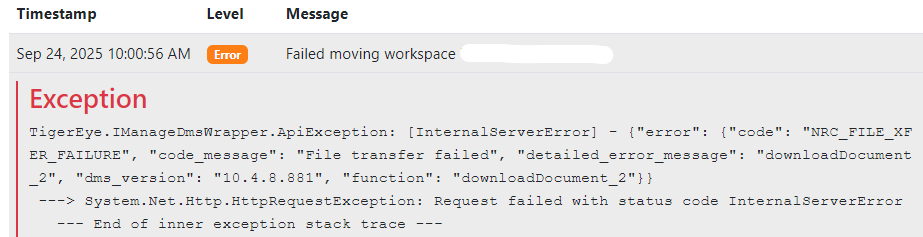
-
To resolve this issue, the 0 byte files must be removed from the workspace. iManage does not allow for 0 byte files to be added to a library, hence the error being generated. Any current 0 byte files present are likely older documents that were added prior to this rule being implemented.
Error “System.ArgumentNullException: Value cannot be null. (Parameter 'userId')"
-
This error occurs upon attempting to Archive a workspace that contains documents that do not have a ‘Last User’ associated with them. The error you will see will be as follows:

-
Administrate expects there to be a ‘Last User’ present for all documents. In order to resolve this, there must be a user associated with the ‘Last User’ field.